


April 28,2026
AI Chatbot for VK: What Domino CRM Offers
Domino CRM allows users to create a VK chatbot with AI quickly and without any technical complexity. For this purpose, our platform includes a dedicated AI Assistant node that can be embedded into any VK chatbot flow. Once properly integrated, it becomes a full-fledged AI helper, a digital employee of sorts, capable of taking over communication with subscribers.
Here is how to configure it.
How to Integrate AI into a VK Chatbot
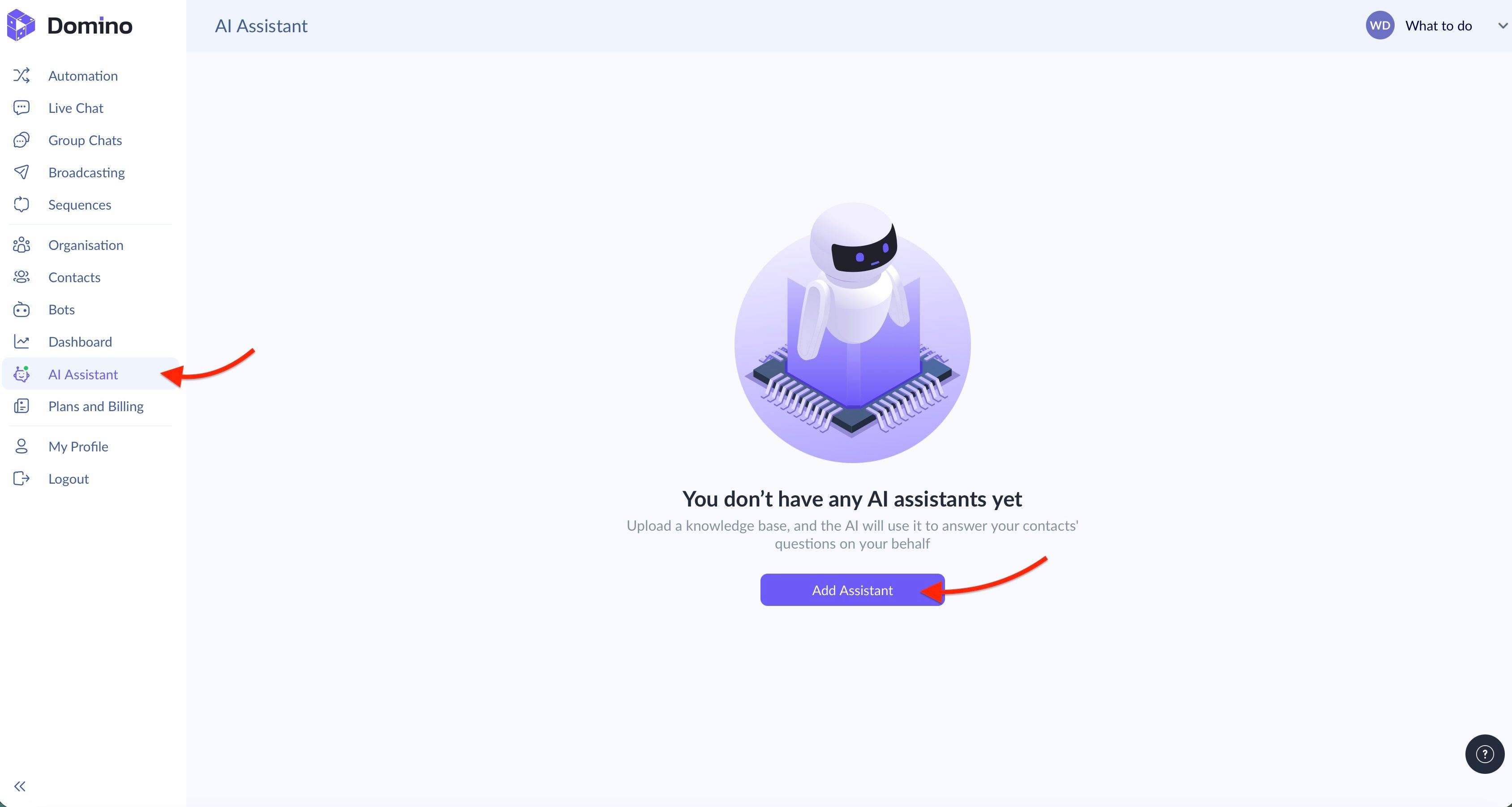
In your VK chatbot builder account in Domino CRM, open the ‘AI Assistant’ section. Click ‘Add Assistant,’ and the system will redirect you to the AI assistant settings page.
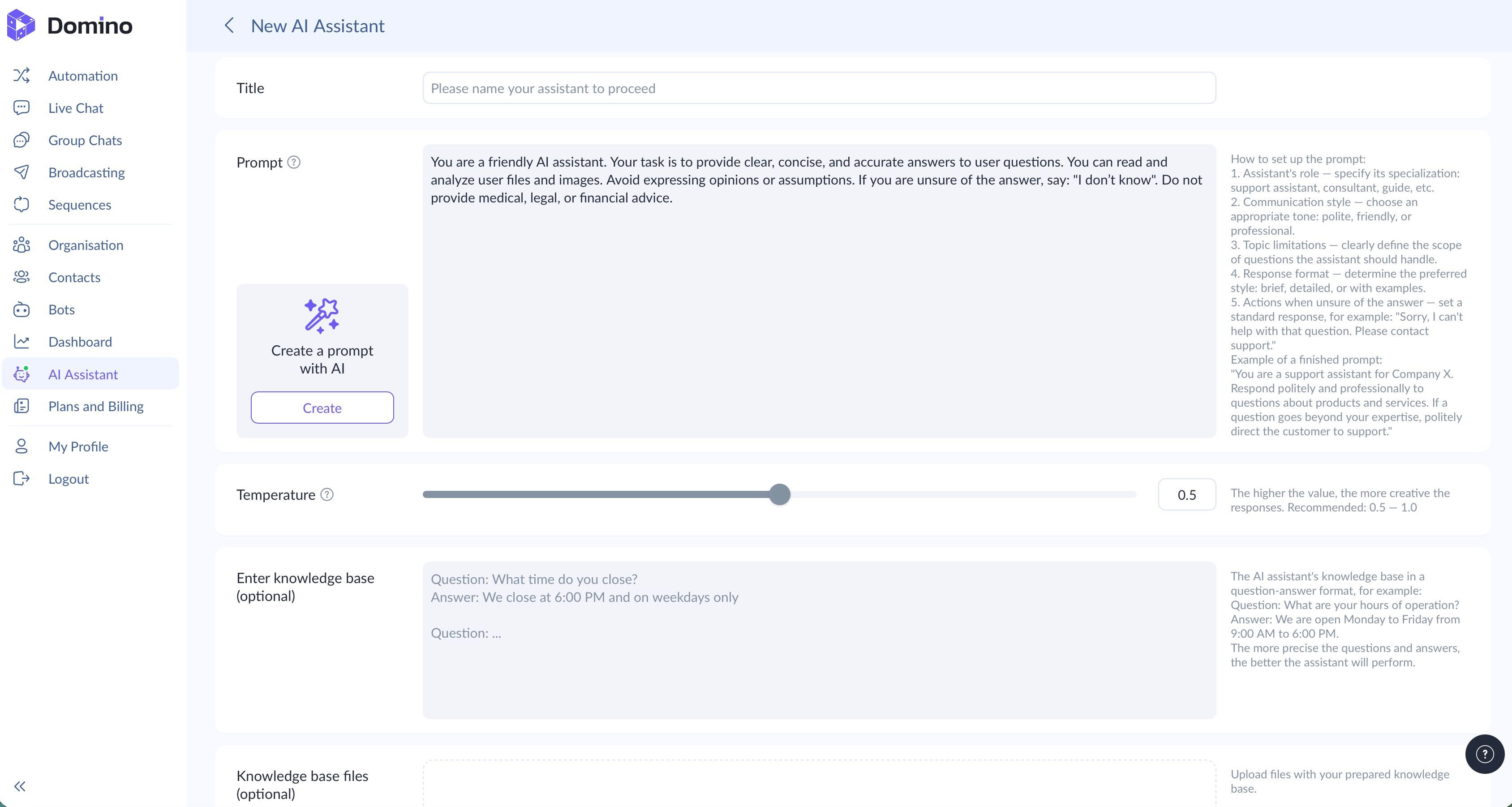
Here you can:
1. Set a name for your VK AI Assistant. This helps you distinguish between assistants if you use several of them for different tasks.
2. Write a prompt. A prompt is the instruction your artificial intelligence assistant will follow when communicating with users.
To create an effective assistant, clearly define:
- Its professional role;
- Its tone of voice;
- The preferred response format;
- Topics or individual words it must avoid;
- Actions it should take if it cannot answer a question.
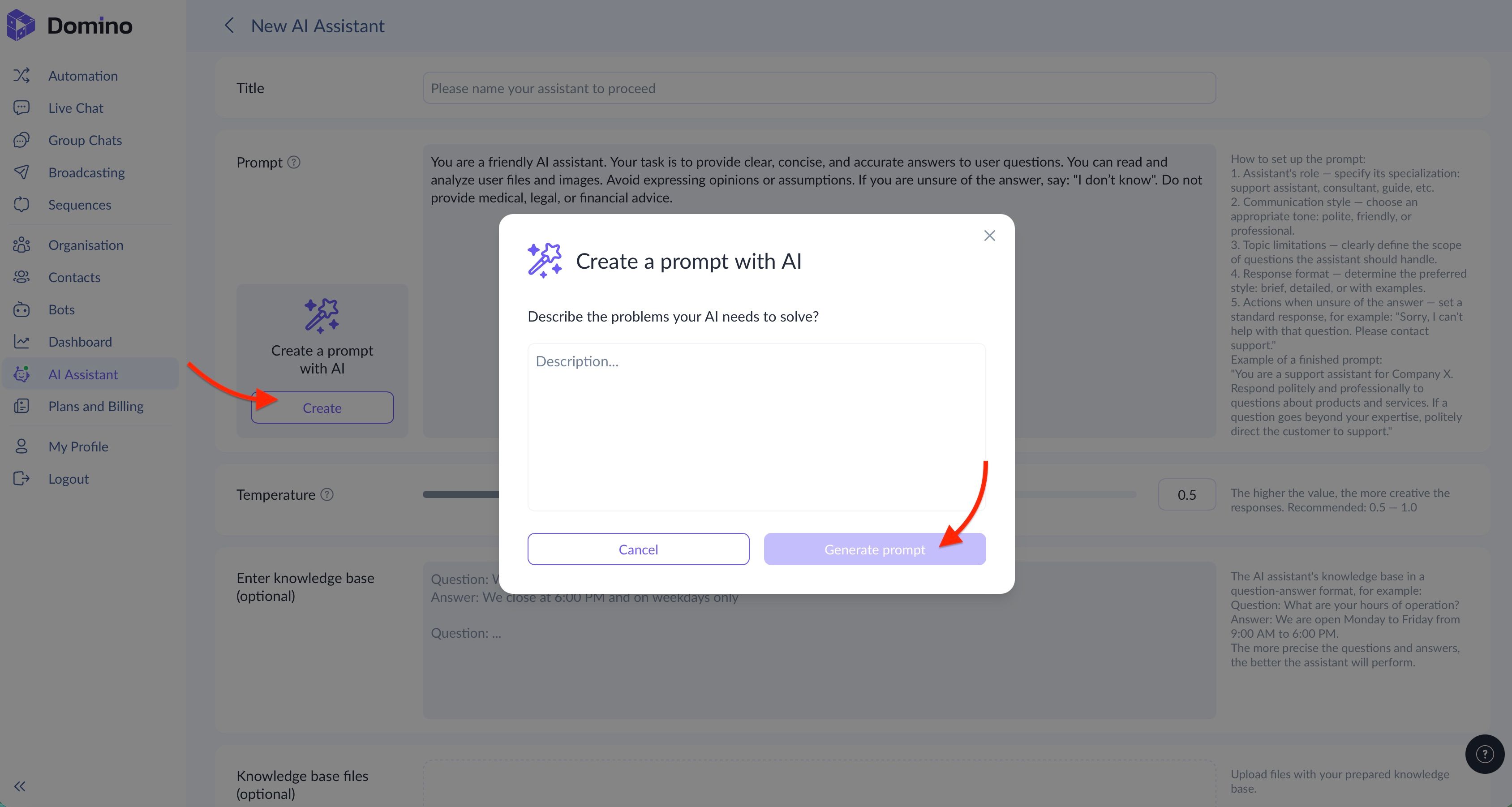
If you do not want to handle prompt engineering manually, Domino CRM also lets you generate this instruction automatically with AI. Simply click the corresponding button.
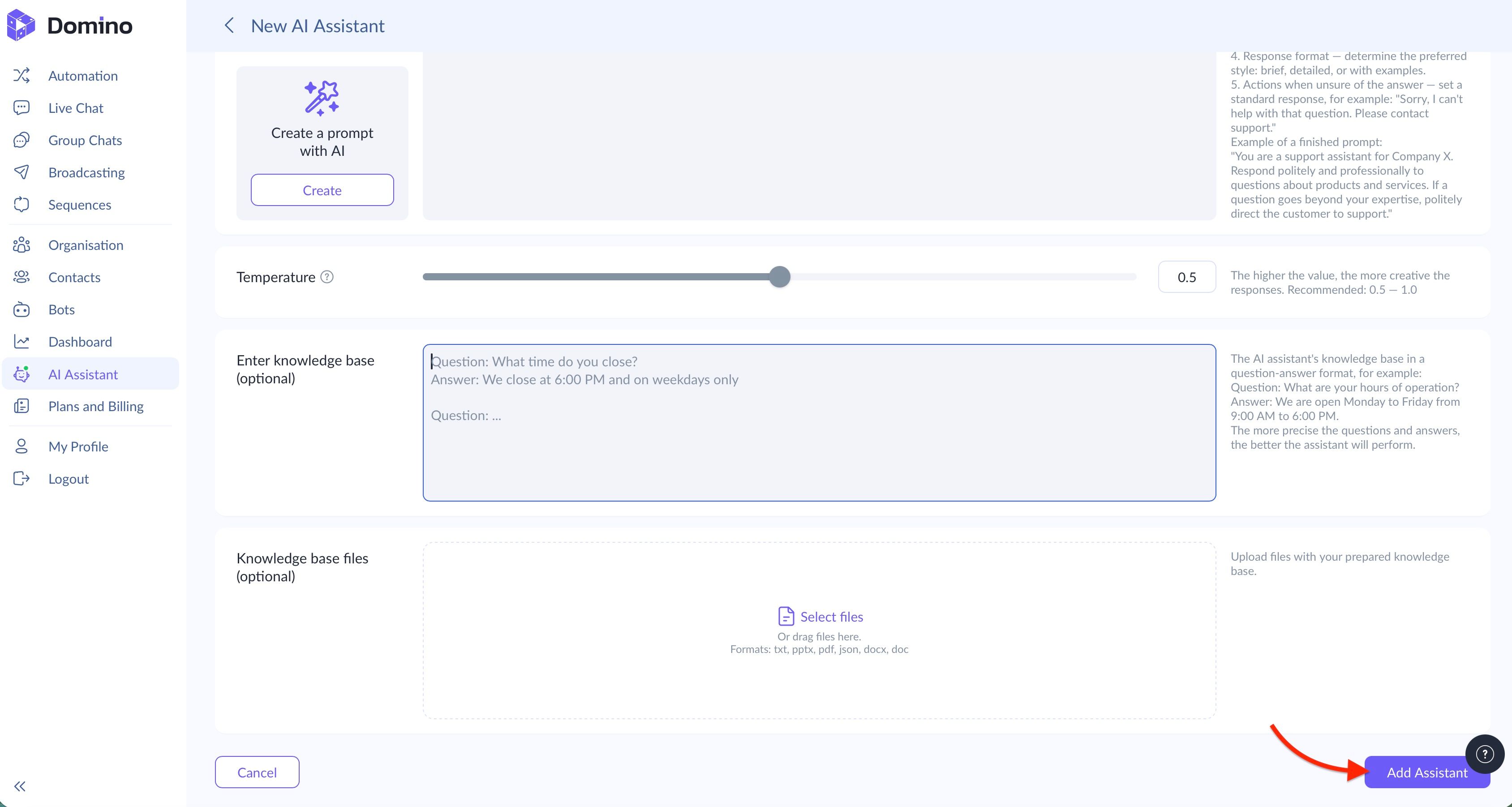
3. Adjust the creativity level with the ‘Temperature’ slider. At lower values, the AI assistant’s responses will be more predictable and closely aligned with your original instructions. At higher values, answers become more flexible and varied in wording. For most business tasks, a medium temperature setting is the optimal choice.
4. Optionally upload a knowledge base. You can additionally provide your AI assistant with business information it can use during conversations.
Domino CRM offers two options for this:
- Manually enter questions and answers;
- Upload complete files.
Once your VK virtual assistant is fully configured, click ‘Add Assistant’ at the bottom of the page.
Now there is only one thing left: integrate the AI Assistant into your VK chatbot flow.
How to Add an AI Node to Your VK Chatbot Flow
Next, go to the ‘Automation’ section and open the tab dedicated to VK bots.
Here you can either:
- Create a new AI-powered flow from scratch;
- Or open an existing one and enhance it with artificial intelligence features.
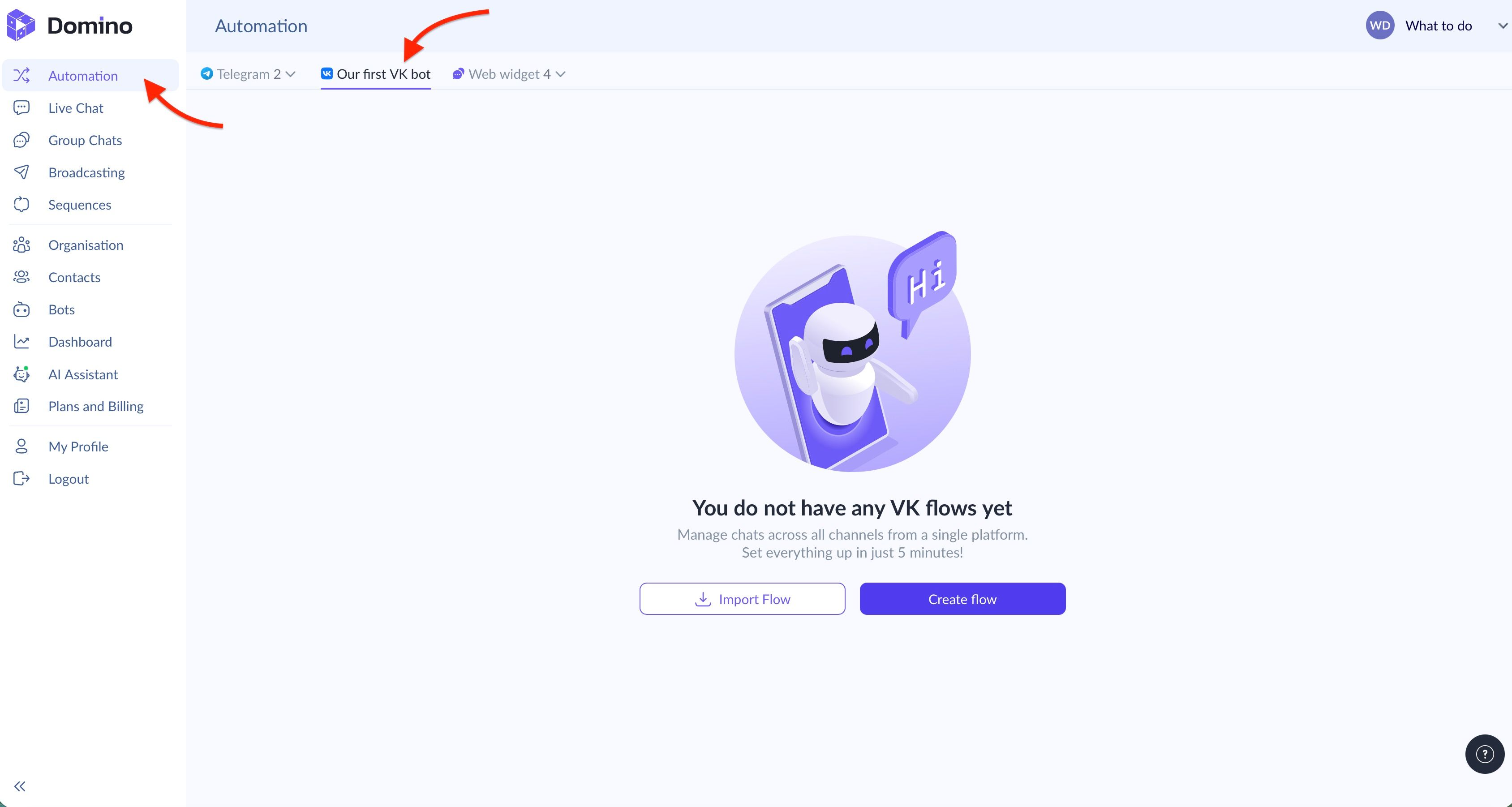
In both cases, you will enter our visual flow editor.
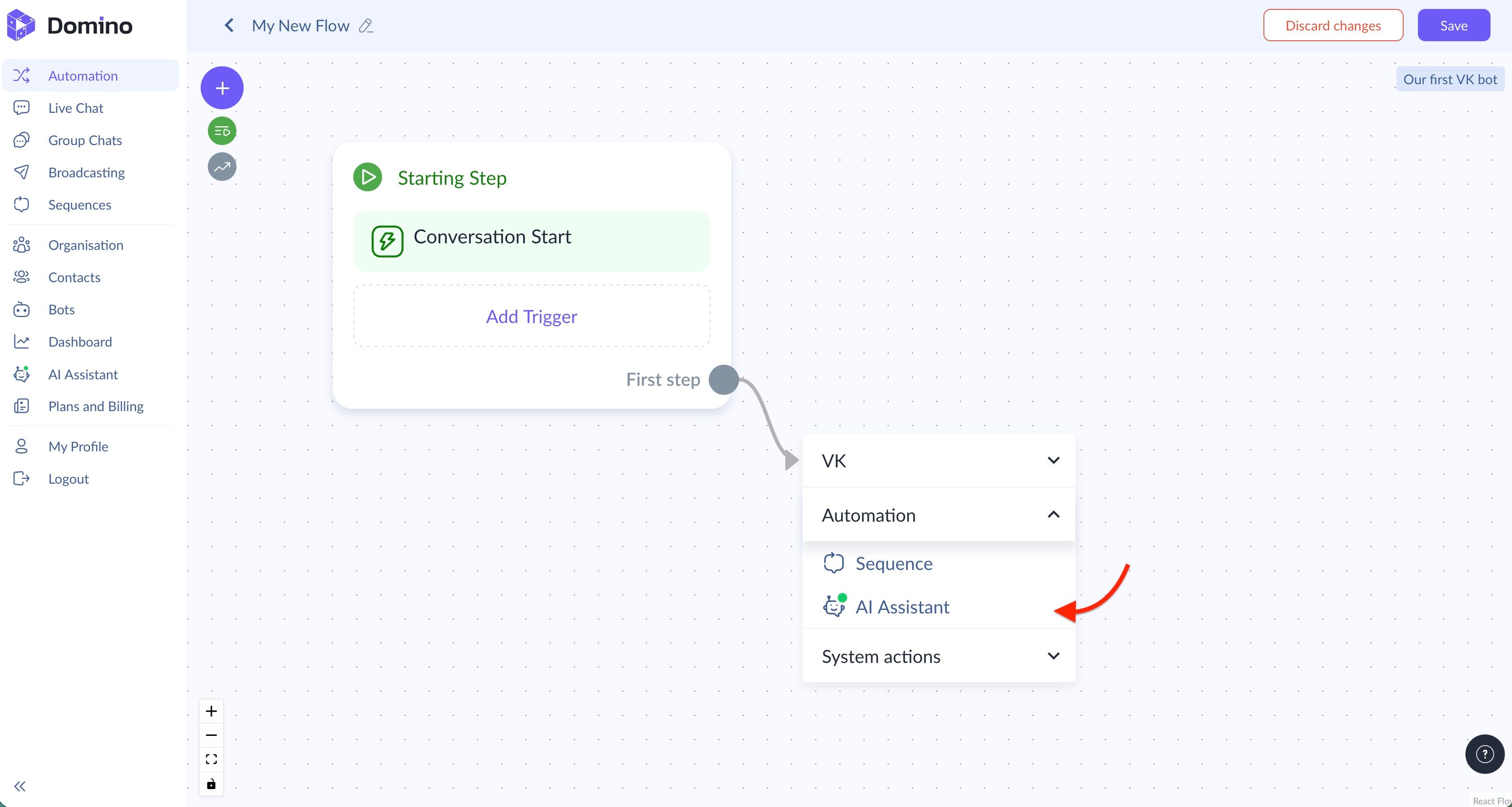
There, select the ‘AI Assistant’ node under the ‘Automation’ category. Then choose the assistant you have just created in the node settings, save the changes, and your AI-powered helper will immediately start working.
Naturally, users on the Pro plan can create several AI Assistants with different roles and place multiple AI blocks inside one flow.
Domino CRM makes it possible to embed AI into a VK chatbot in just a few minutes: no coding and no complex integrations are required. All that remains is to configure the assistant according to your business tasks!
You May Also Like

How to Create a VK Broadcast with Domino CRM
How a Domino CRM chatbot helps you launch mass broadcasts to subscribers of your VK community

How to Create a VK Chatbot Flow with Domino CRM
How to Create a VK Chatbot Flow