

April 21,2026
How to Create a VK Chatbot Flow with Domino CRM
In our previous article, we showed how to create chatbots for VK. Now, we will walk you through how to build a chatbot flow.
VK Chatbot: First Step to Creating a Flow
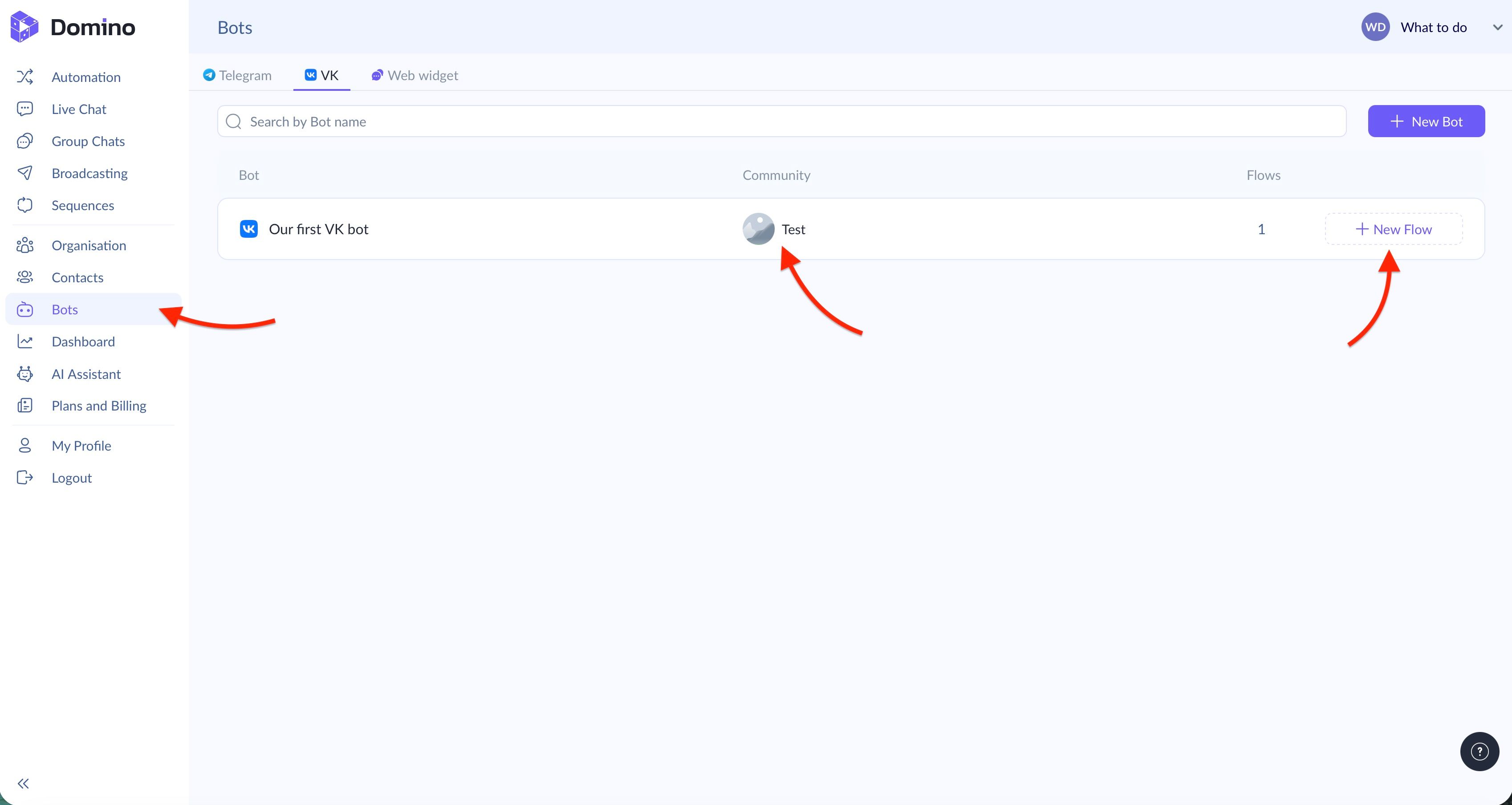
Before you start building a flow, make sure your bot is not only created but also successfully connected to your VK community. You can check this in the ‘Bots’ section. Then click ‘+ New Flow.’
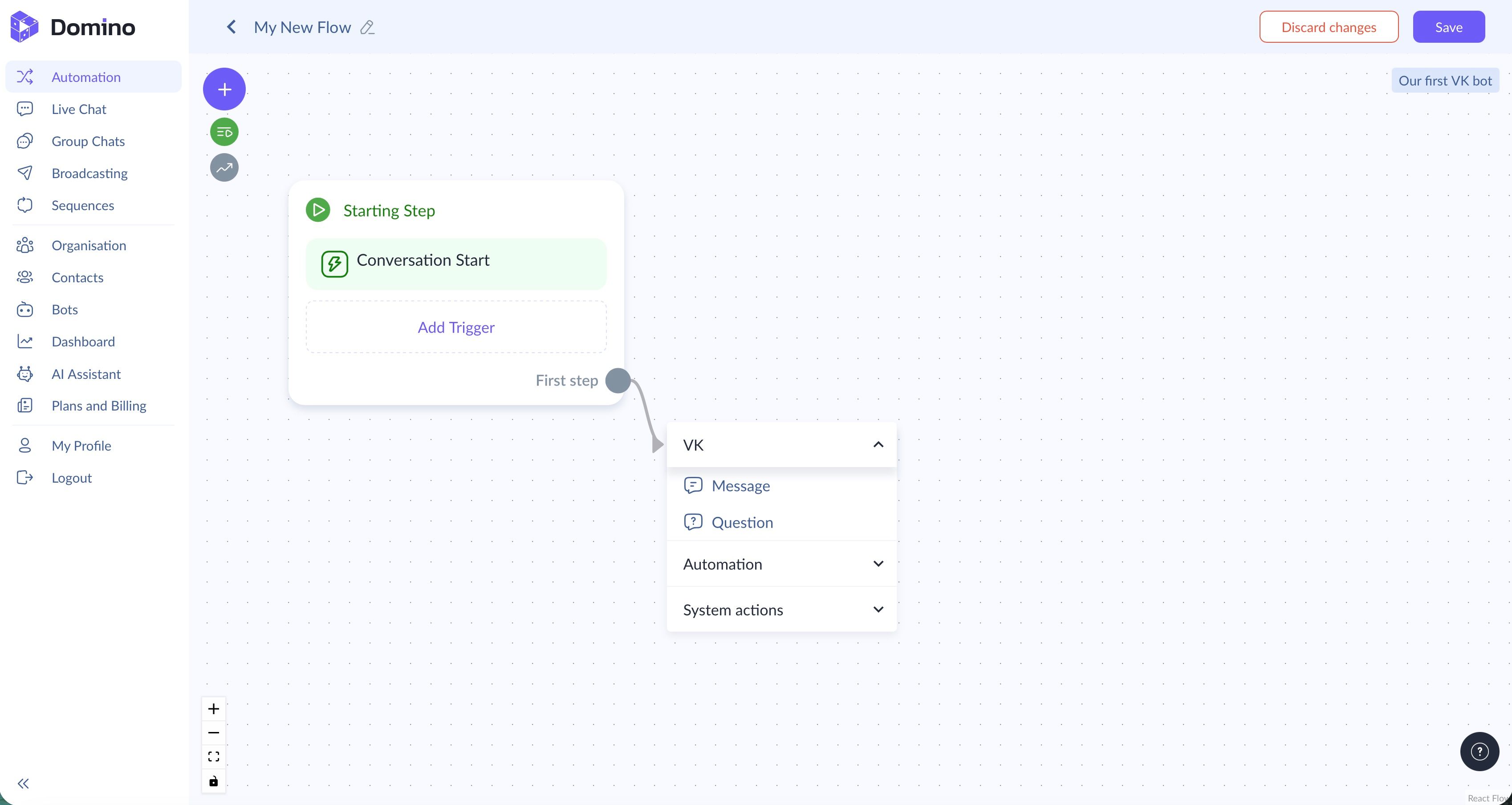
The system will immediately redirect you to the visual flow builder for VK.
In the editor, you can:
- Set up triggers to launch your flow in VK. By default, Domino CRM uses ‘Conversation start,’ but you can disable this trigger or add one of three options: keywords, button clicks, or a schedule;
- Add ‘Message’ or ‘Question’ nodes;
- Place interactive blocks for communication in VK, such as ‘Sequences’ or ‘AI Assistant’;
- Use various system actions for flow branching and working with variables.
Two Quick Ways to Create a VK Chatbot Flow
Let’s say you don’t want to build a chatbot flow from scratch. In that case, Domino CRM offers two alternative options.
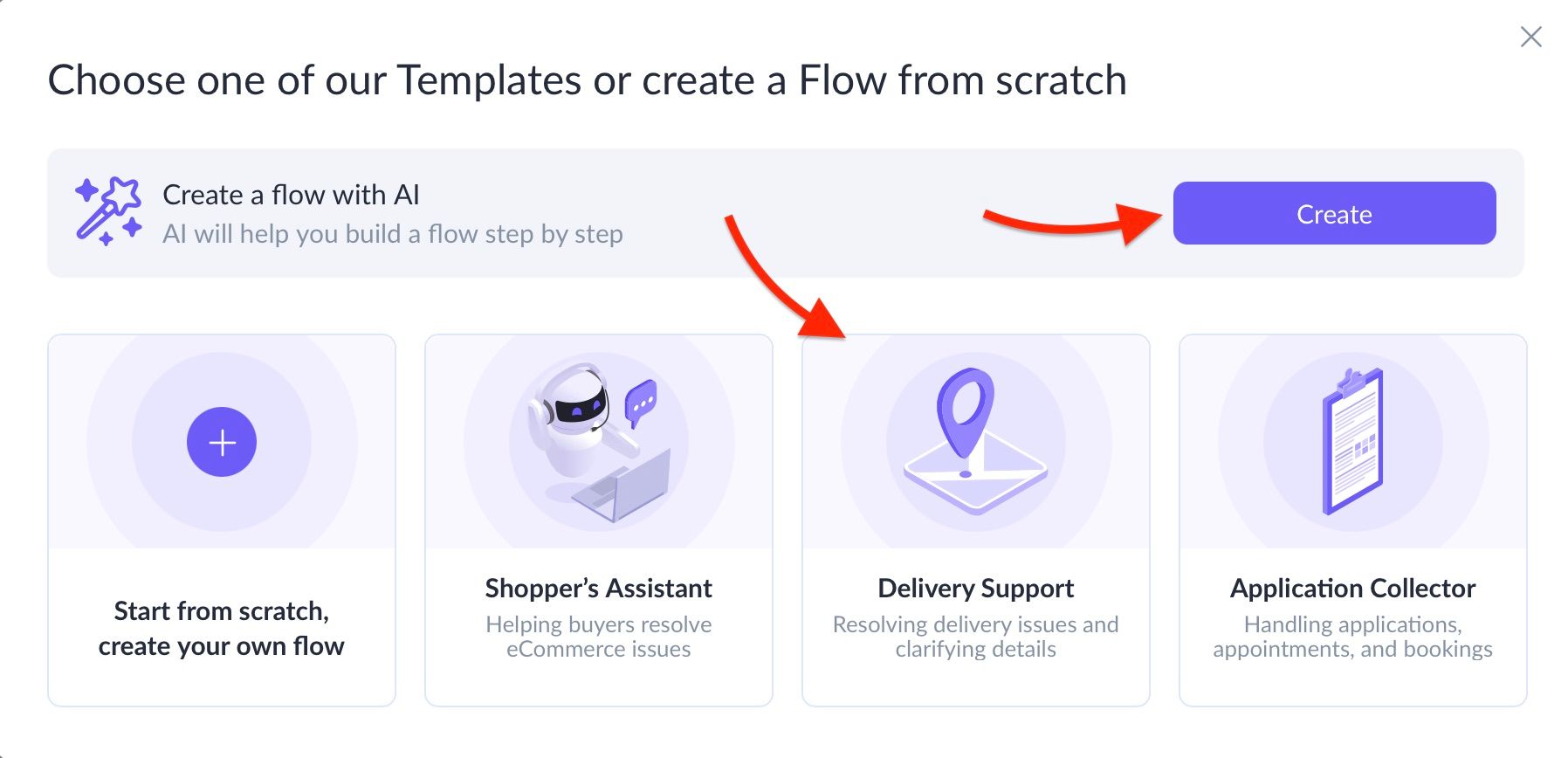
To use them, go to the ‘Automation’ section and click ‘Create Flow.’
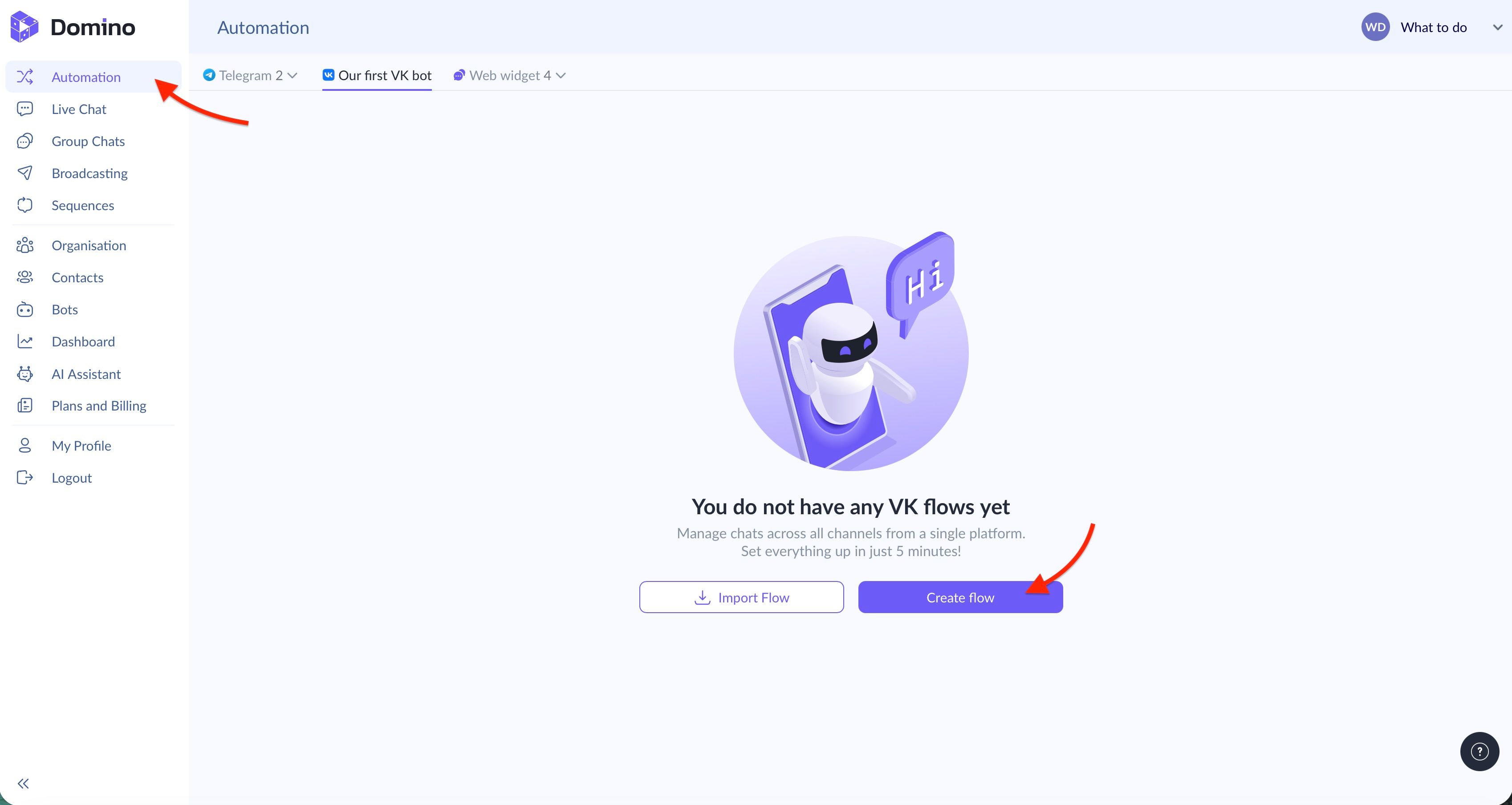
Next, Domino CRM gives you a choice that lets you skip manual setup:
- Use one of three ready-made templates that you can quickly load and edit: Shopper’s Assistant, Delivery Support, or Application Collector;
- Delegate flow creation to the built-in AI.
How to Use AI to Create VK Chatbot Flows
If you decide to rely on AI, you will need to:
- Enter your business name in the special field;
- Optionally add a link to your website or social media profile;
- Describe your business area and format;
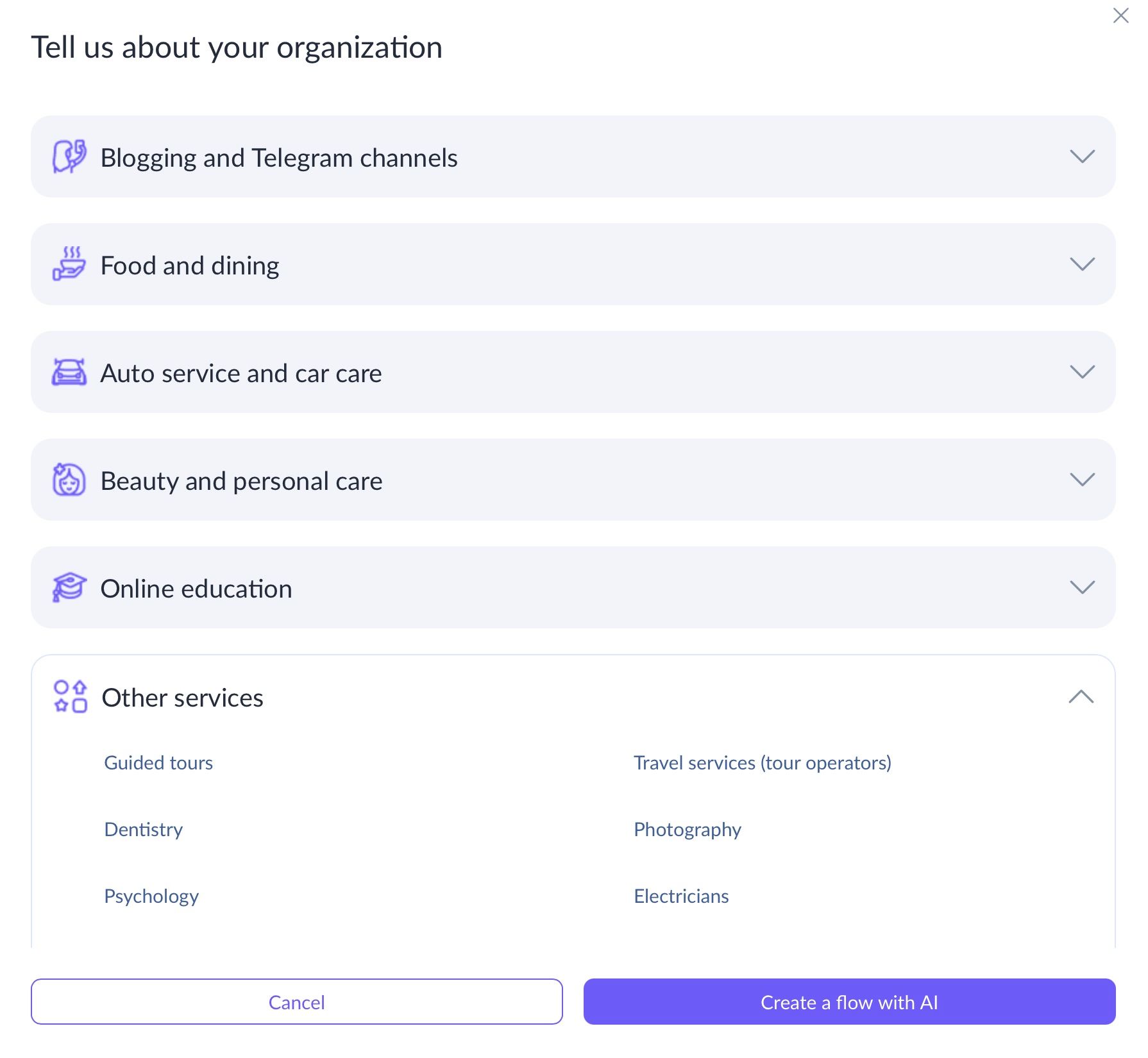
- Select a relevant preset — blogging, food service, automotive, beauty, education, or ‘Other services.’ Each preset includes more detailed subcategories to help you match your niche;
- Click ‘Create flow with AI.’
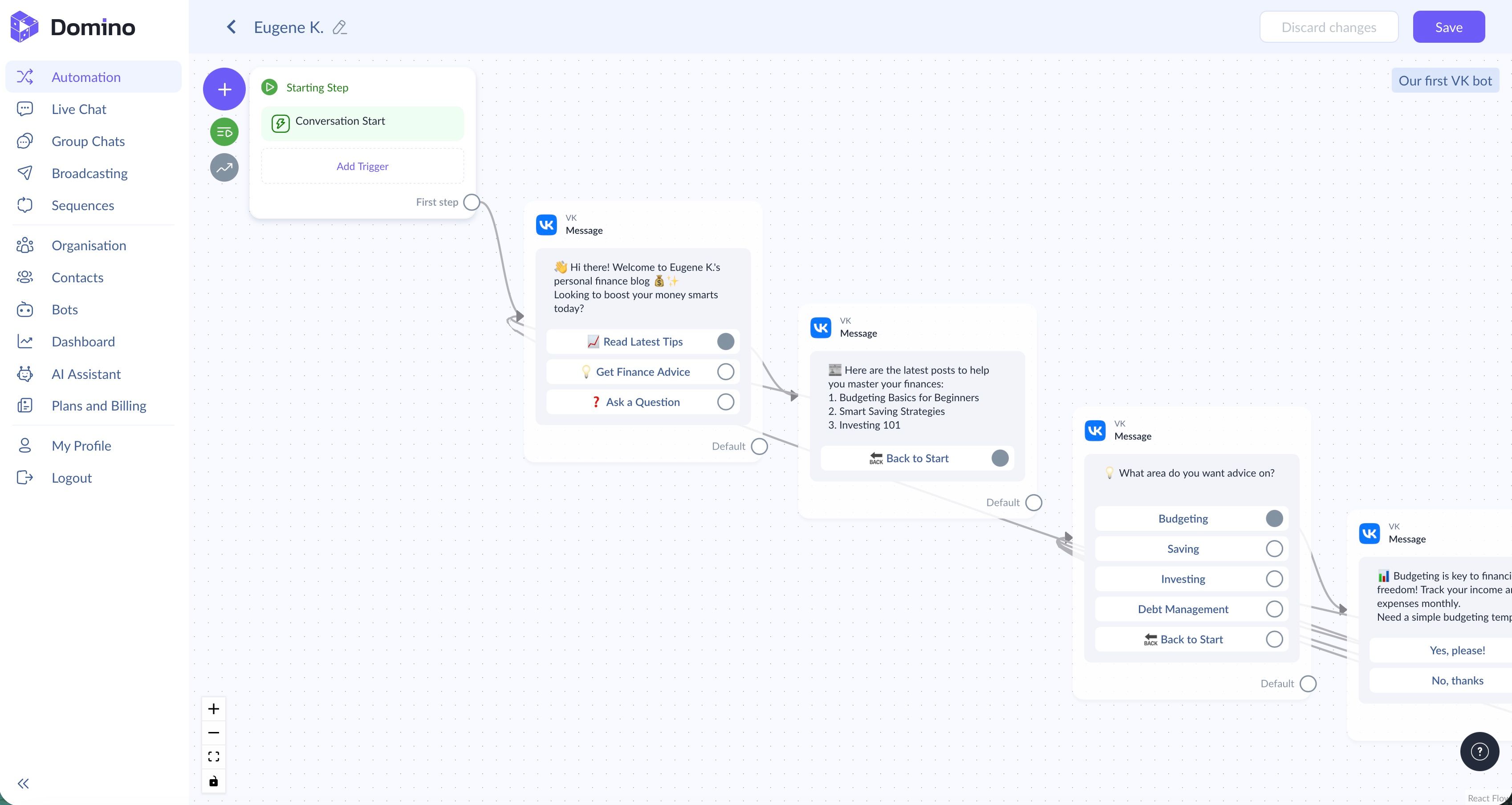
In this example, we asked AI to generate a flow for a personal finance blog. All that is left is to review, edit, and save it.
How the Flow Looks from the Subscriber’s Perspective
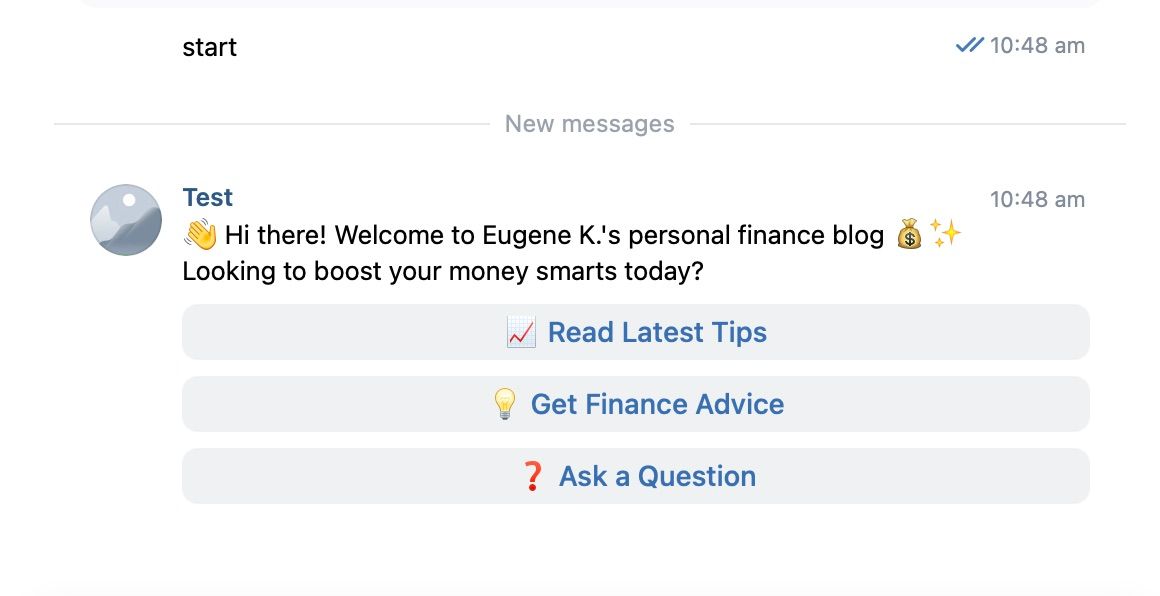
Everything is ready. What does this look like from the subscriber’s perspective? It is simple: when a user sends a message in your VK community, the chatbot guides them through the predefined flow within the familiar VK interface.
Create your VK chatbot and launch your first flow today. As you can see, it is straightforward!
You May Also Like

AI Chatbot for VK: What Domino CRM Offers
How to Add AI to a VK Chatbot

How to Create a VK Chatbot? Easy with Domino CRM
How to Create a VK Chatbot: A Step-by-Step Guide