


May 05,2026
How to Create a VK Broadcast with Domino CRM
If you create a chatbot for VK and connect it to your VK community as an admin, you will also be able to launch broadcasts to group members with ease. This means you do not have to rely only on public posts and one-on-one chatbot replies in private messages. You can communicate with subscribers on a mass scale: either with the entire audience or with a separate segment of it.
VK Chatbots: Broadcasts
Creating a VK broadcast through a chatbot works as follows.
1. Create a New Broadcast. In the ‘Broadcasting’ section of your personal account, create a new one by clicking the ‘+ New Broadcast’ button. Make sure that you are currently inside the tab of the VK bot.
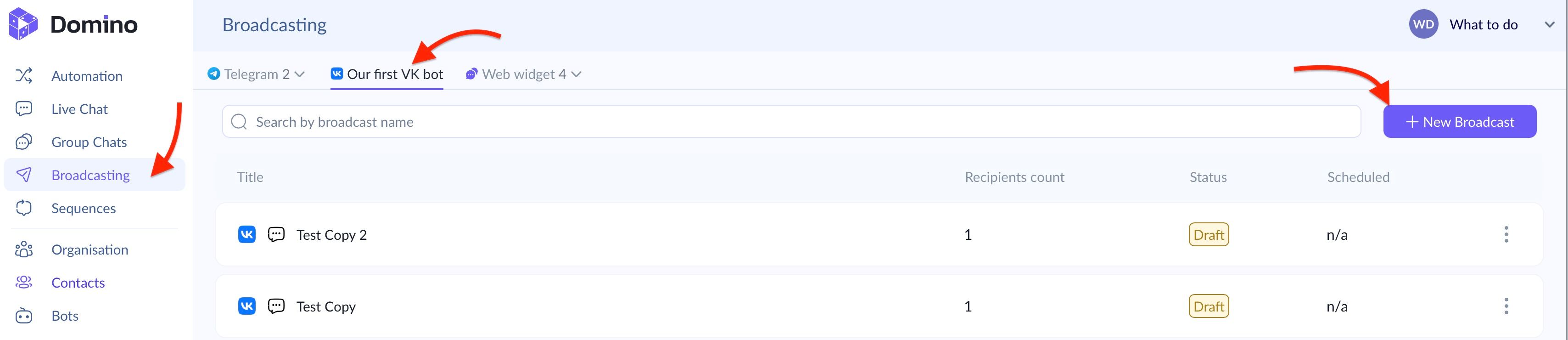
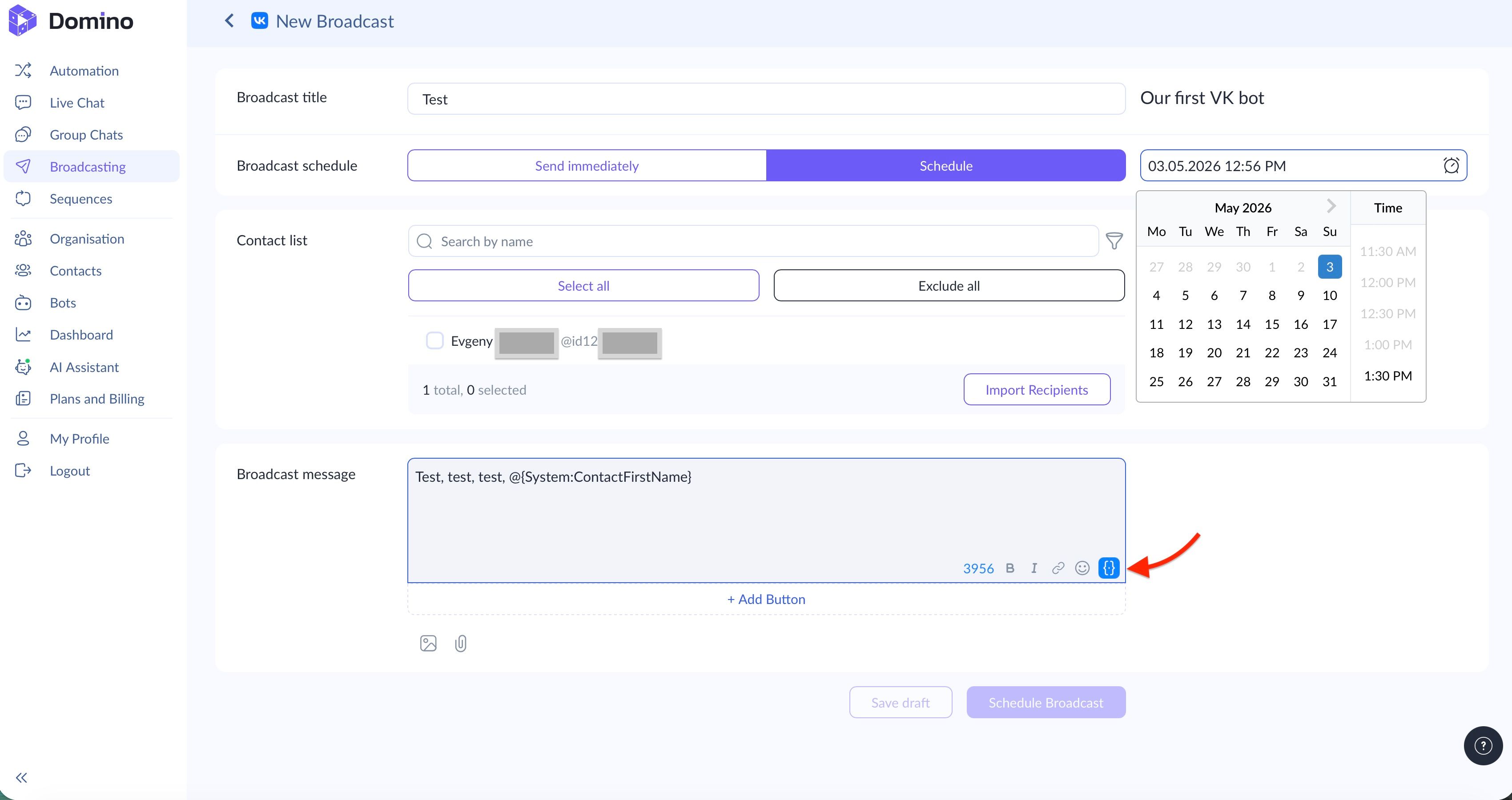
2. Configure broadcast settings. The system will then take you to the VK broadcast editing section. Here, you will need to:
- Give the broadcast a title under which it will be saved in the chatbot builder. This title is for your internal use only, i.e., recipients will not see it;
- Approve the sending time: either send immediately or schedule the VK broadcast for a specific date and time;
- Work with the recipient list. You can choose all subscribers, search by name and include or exclude specific contacts, or import recipients manually. In addition, Domino CRM also allows more advanced filtering by contacts and their fields. To use it, click the funnel icon next to the contact list.
For manual import, the Domino CRM builder will ask you to upload a CSV file with recipient contact data structured in the required format. For convenience, we provide a ready-made template file.
3. Compose the VK Broadcast Message. Now create the text of your VK broadcast. In the Domino CRM text field, you can format fonts, insert links, add emoji, and — most importantly — integrate custom variables from system fields and contact fields. This allows you to make your VK mailing personalized and highly relevant to each subscriber, which can strengthen communication with your target audience and positively affect engagement.
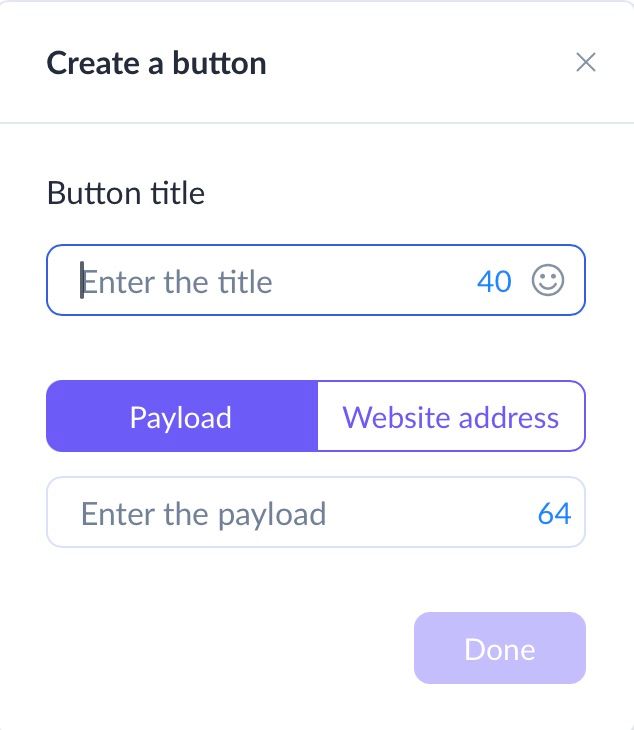
4. Add a Button (Optional). You can also add a button that either leads subscribers to an external resource via a link or launches a chatbot flow through a payload trigger.
5. Save or Launch the Broadcast. At the final stage, you can either save the VK broadcast for further editing or launch it immediately. Depending on the timing you selected, click either 'Start Broadcast' or 'Schedule Broadcast.'
How a VK Chatbot Broadcast Looks for the Subscriber
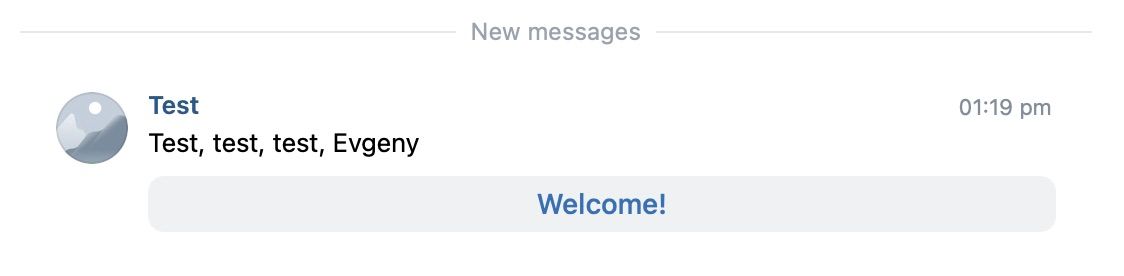
The subscriber will see your message directly inside their personal VK account, in the familiar native interface they already frequently use.
For example, imagine that we created a short message, inserted the System:ContactFirstName variable, and embedded a Welcome button with a link to the Domino CRM website. The user will receive a message from your VK group that looks just like any other dialog in their inbox.
Saving VK Broadcasts Created by a Chatbot
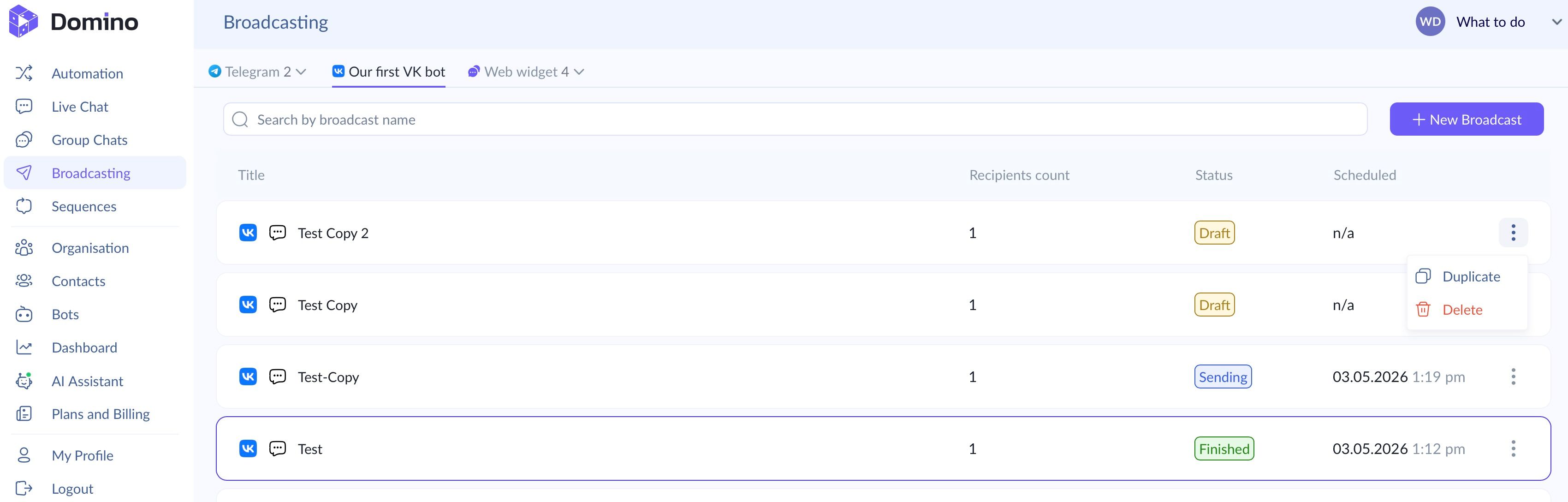
All broadcasts are saved in the corresponding section of the VK bot tab. You can duplicate any of them at any time: simply click the three dots and select ‘Duplicate.’ You can also open an already sent broadcast or a draft directly from the list to view all additional details.
Create your first VK broadcast in Domino CRM today!
You May Also Like

Automated VK Sequences: Domino CRM Tips and Best Practices
How to Set Up Automated VK Sequences in Domino CRM

AI Chatbot for VK: What Domino CRM Offers
How to Add AI to a VK Chatbot