


May 27,2026
Chatbot for a Website: How to Create One
A chatbot for a website is a fast and interactive way to engage visitors in communication. And if we are talking about an AI chatbot for a website, it can do more than follow predefined flows: it can also recognize free-form user requests and provide relevant responses. At a time when creating and launching a website has become much easier, and online search is actively changing under the influence of artificial intelligence, ignoring this communication channel is at least outdated. With Domino CRM, you can add a chatbot to your website as a web widget, swiftly and without the headache of complex development.
How to Add a Chatbot to Your Website with Domino CRM
To add a chatbot to your website, log in to your Domino CRM account, go to the ‘Bots’ section, switch to the ‘Web Widget’ tab, and click ‘Create Bot.’
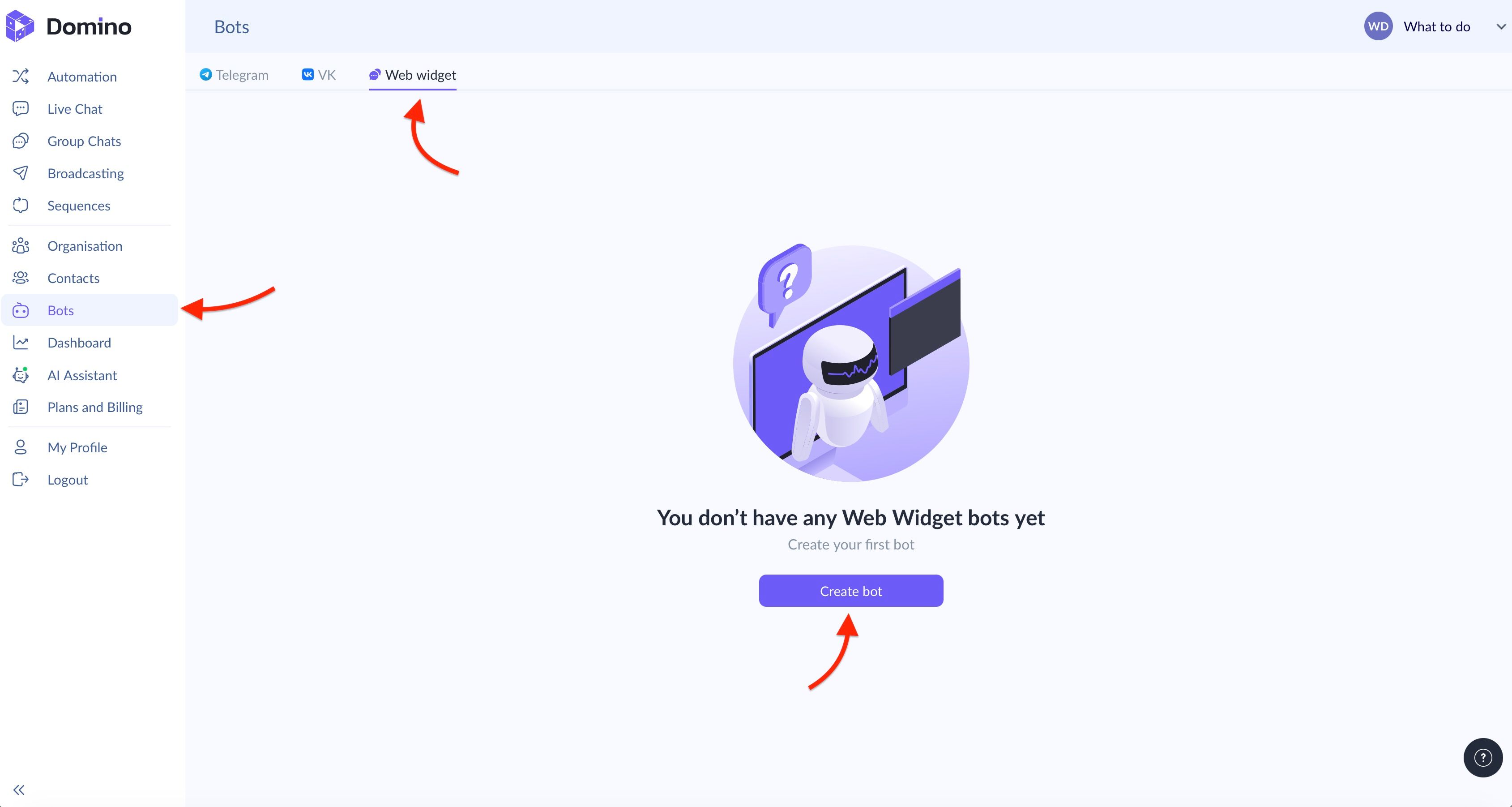
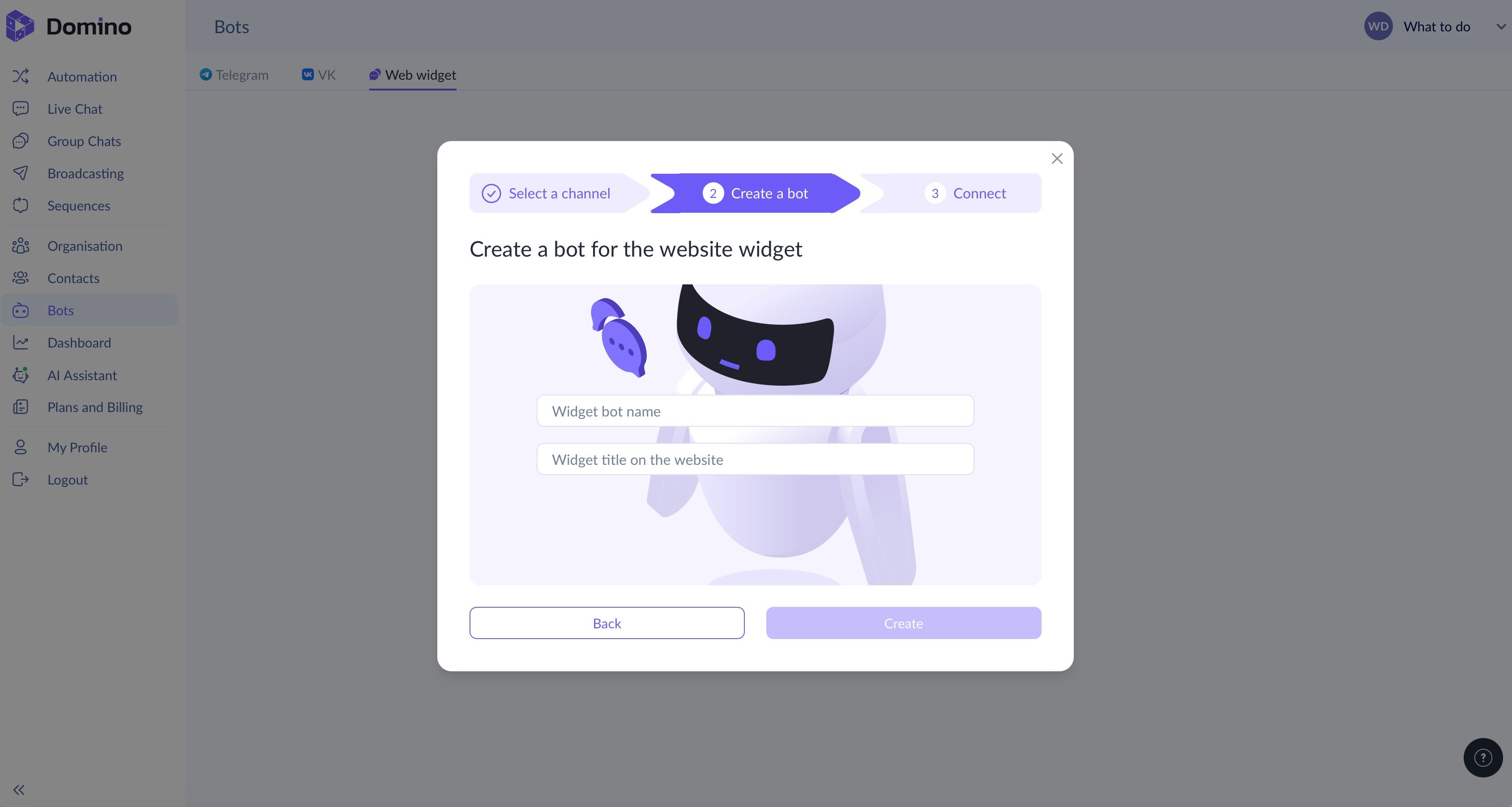
Next, our chatbot builder for websites will ask you to give your smart assistant a name and a title to be displayed on the web page. Enter these details in the corresponding fields.
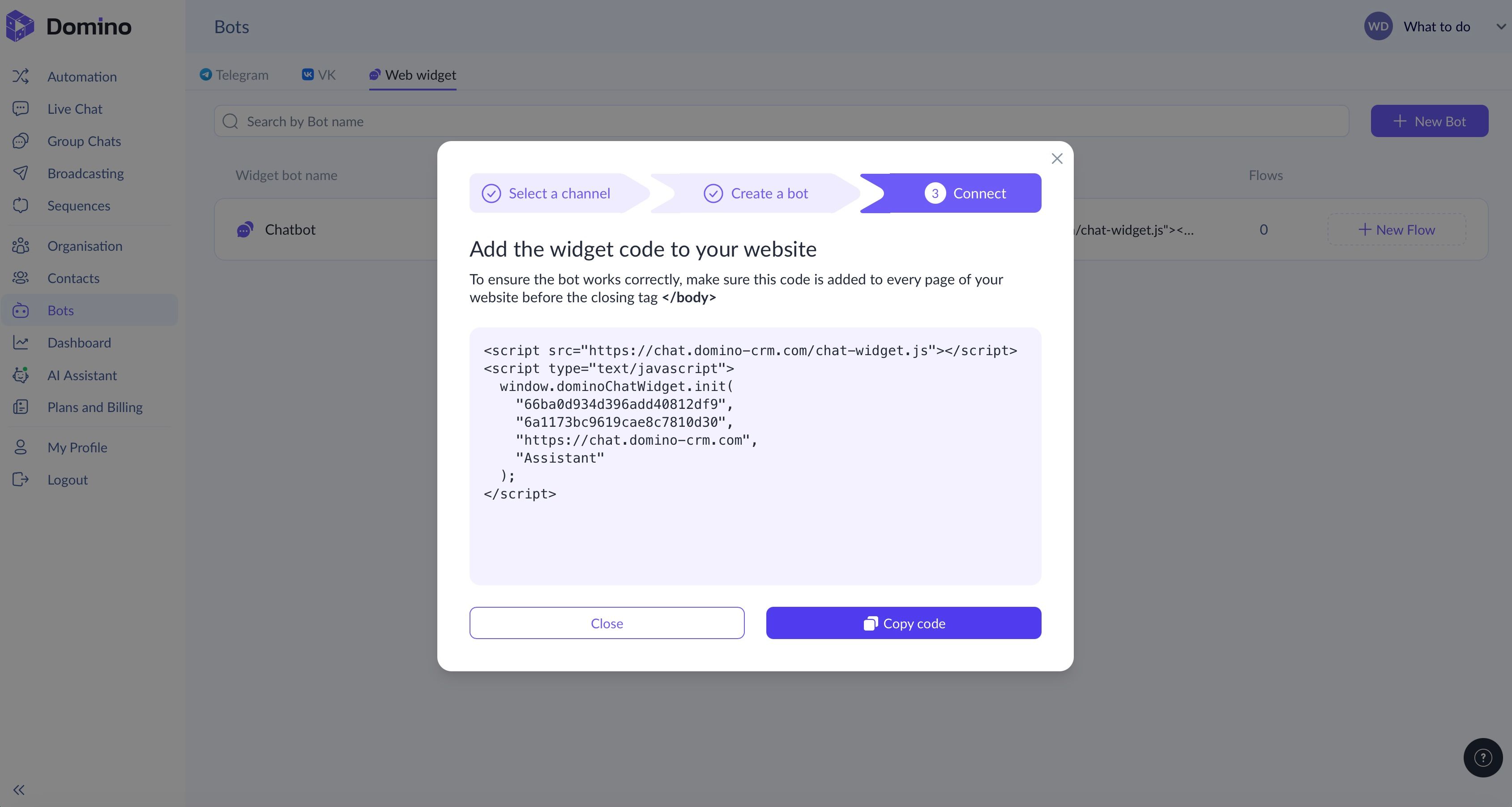
After that, our system will automatically generate the code for the website chatbot. All you need to do is copy it and integrate it into the page code. This code snippet should be added to every page before the closing </body> tag.
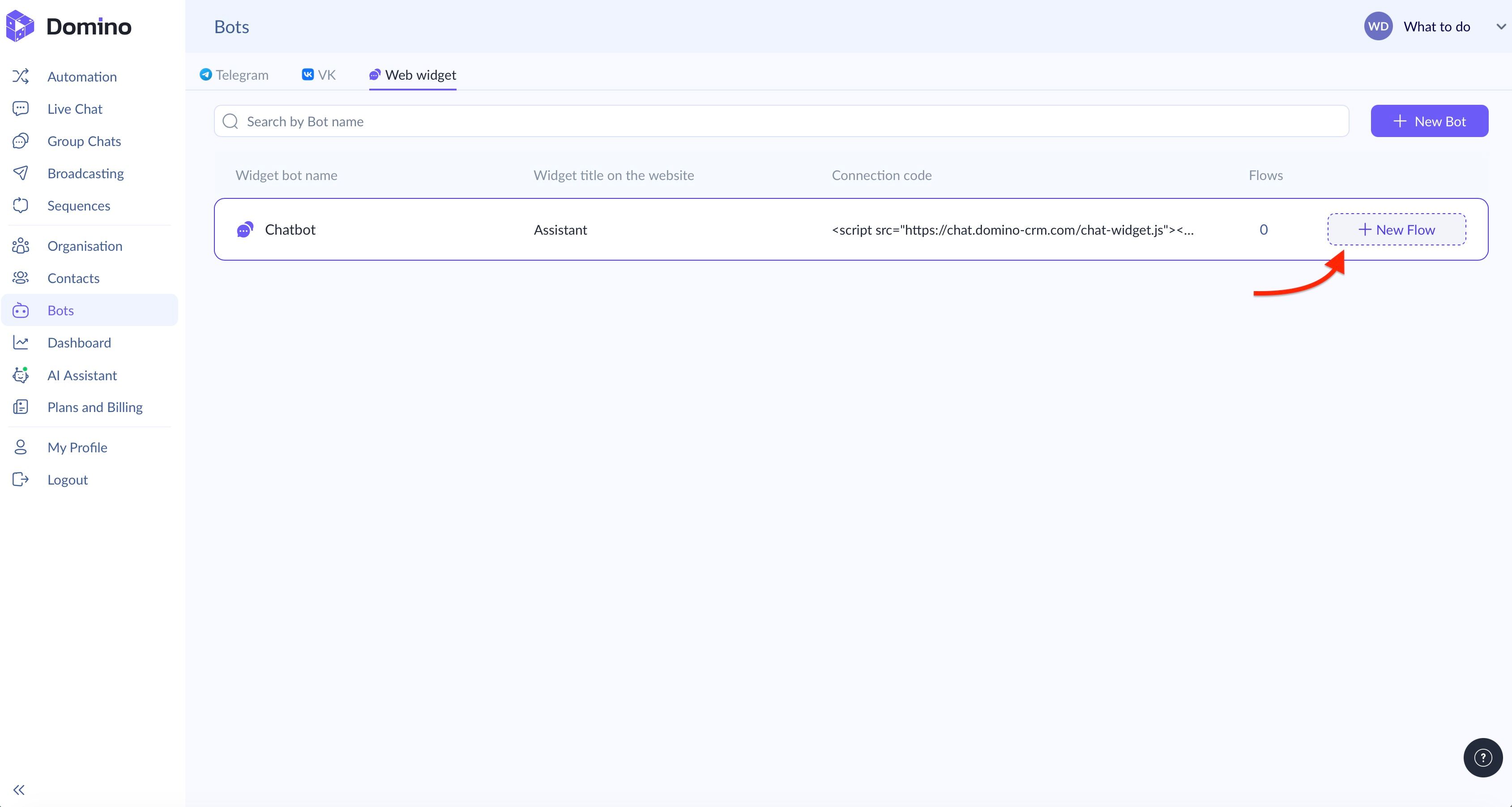
Flow for a Website Chatbot
After creating a chatbot for your website, you need to create a flow that will guide the visitor through the conversation. Click ‘+ New Flow’ to open the editor.
In the editor, there are two main steps.
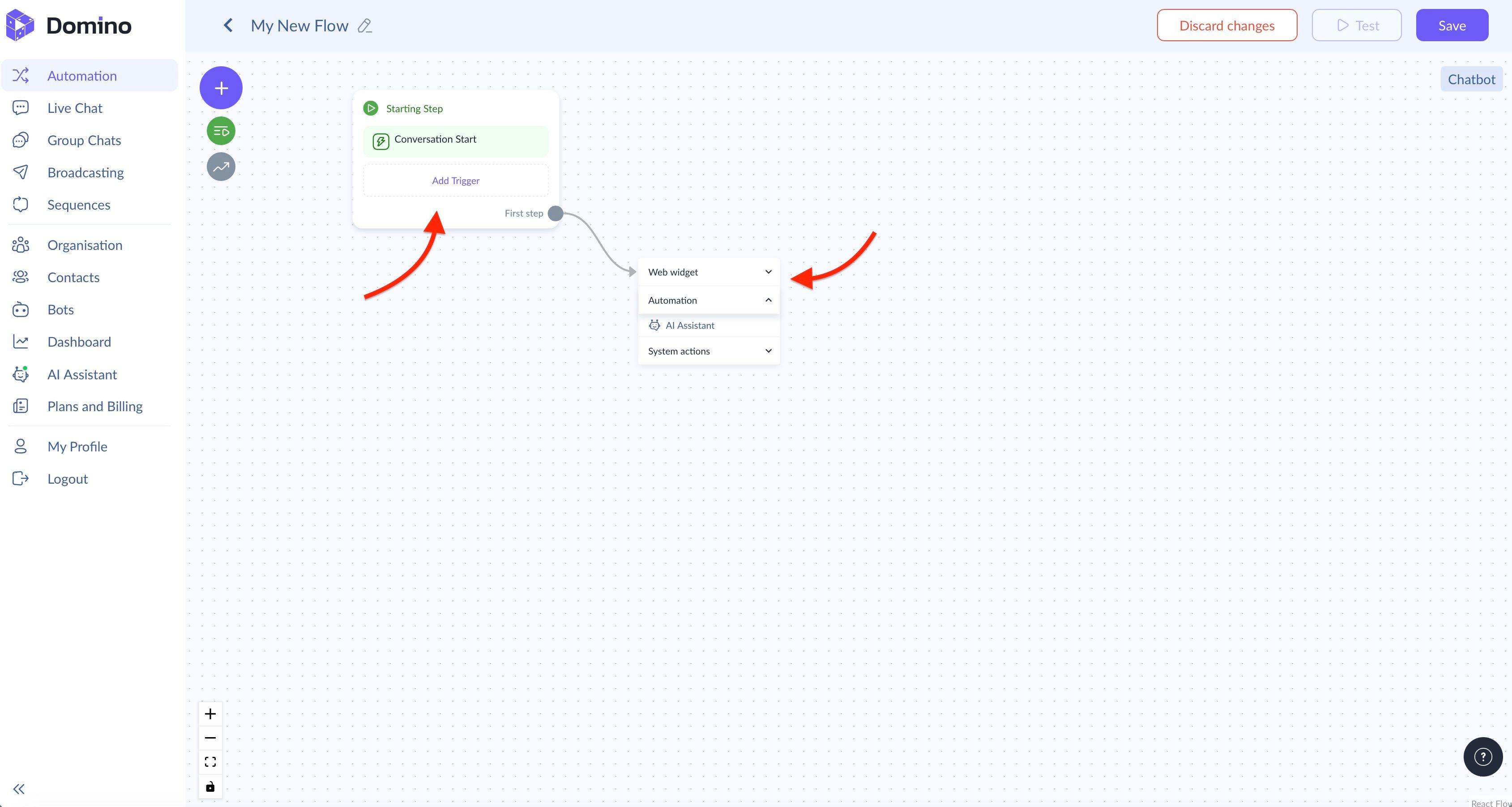
First, configure the triggers that will start the communication. For a website web widget, there are three options: the default ‘Conversation Start’, keyword input, or clicking a button that you create.
Second, build the flow itself. There are three types of nodes available:
- Communication nodes of the ‘Web widget’ type: ‘Message’ and ‘Question’;
- Automation nodes. Currently, there is only one node of this type. But it is really an important one: ‘AI Assistant’;
- ‘System actions’ nodes. These are used to process contact information and branch the flow depending on variables. The available nodes include ‘Set Value’, 'Insert into array’, ‘Get from array’, ‘Calculations’, ‘Start Flow’, ‘Condition’, ‘Assignment’, ‘HTTP request’, and ‘Delay’.
You can build your own unique flow manually using a combination of these steps. At the same time, there are two ways to create a website chatbot flow faster.
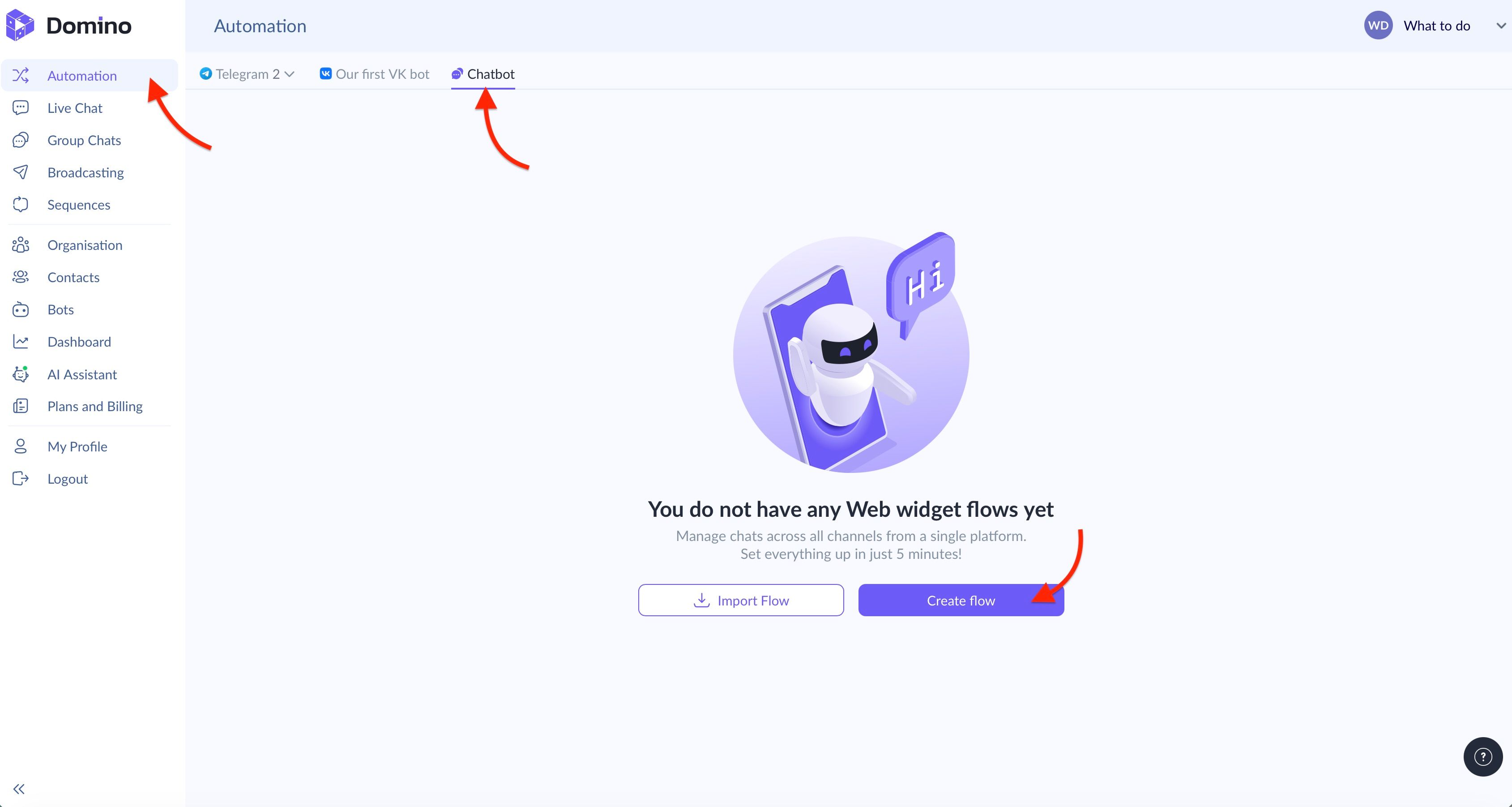
To do this, go to the ‘Automation’ section, make sure you are on the correct Web widget tab, and click ‘Create Flow’.
Two Quick Ways to Create a Flow for a Website Chatbot
Here, you have two options.
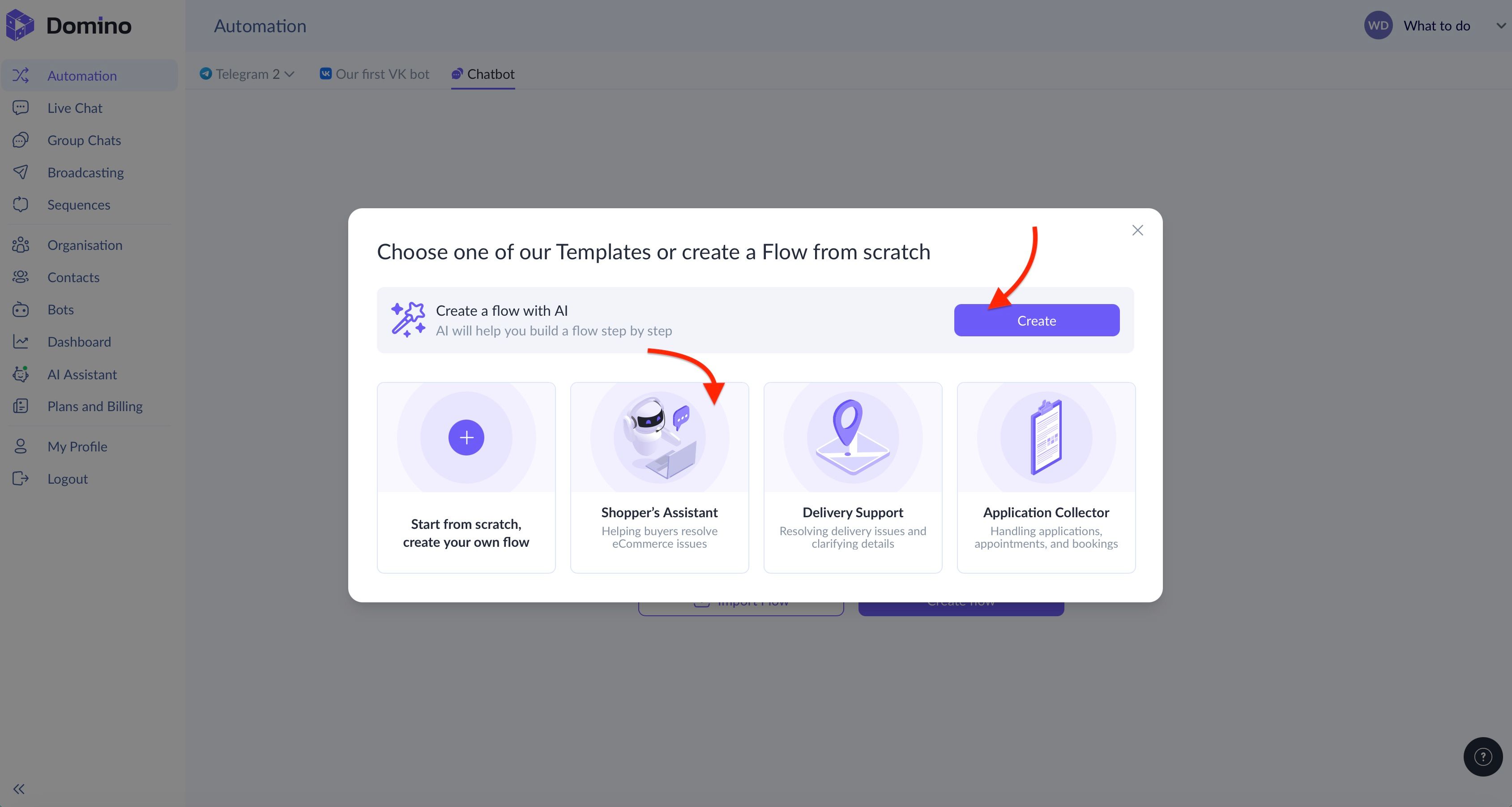
The system will offer to create a flow with the help of AI. If you choose this method, Domino CRM will ask you to enter your business name, provide a link to your website or social media page, briefly describe your business area and format, and then select a specific niche from one of six types: blogging, food service, automotive, beauty, education, or ‘Other services’. After that, the built-in AI will automatically prepare the basic flow for you.
You can also choose one of three ready-made templates: ‘Shopper’s Assistant’, ‘Delivery Support’, or ‘Application Collector’.
After that, you only need to customize the prepared template.
That’s it! Your website chatbot is now created and ready to work. In the next article, we will explain how to work with the AI Assistant inside it so that your web page better meets the expectations of users in the modern AI era.
You May Also Like

Chatbot for Telegram Groups: How It Works in Domino CRM
How to Manage Telegram Groups with a Chatbot

Chatbot: How to Set Restrictions
Learn how to set chatbot restrictions and moderate communication in groups with Domino CRM